Valorant Incompatible Software Error – How to Fix It – RiftZone
Getting the Valorant incompatible software or incompatible software component error? Here’s what causes it and how to fix it step by step.
Table of Contents
You launch Valorant and get “VAN: Incompatible Software,” then Vanguard names a file you’ve never heard of. It’s usually a kernel-level driver, VPN, or outdated tool blocking Vanguard. Don’t panic—you can fix it by identifying the flagged file, removing the app behind it, and tightening a few Windows settings. We’ll walk you through quick checks, safe uninstall steps, and what to try if uninstall fails, plus the must-do reboots and updates that make it stick.
What Is the VAN: Incompatible Software Error?
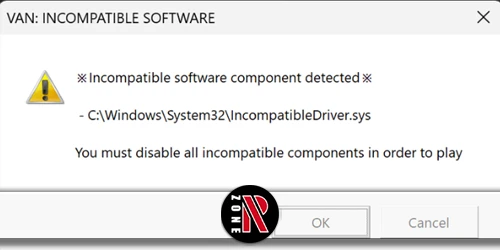
When Riot Vanguard detects software it can’t safely run alongside, you’ll see a “VAN: Incompatible Software” error that blocks Valorant from launching and names the exact file causing it. This isn’t a random crash—it’s Vanguard stopping drivers or programs it deems risky at the kernel level.
You’ll typically get a file path, often in C:WindowsSystem32drivers (for example, inpoutx64.sys or EPMVolFlt.sys). These usually belong to third‑party drivers or system utilities: outdated input/display drivers, hardware monitoring tools, RGB or macro software, VPN components, or conflicting anti‑cheat drivers. Screenshot the message to capture the exact path and filename. That identification lets you remove the offending software cleanly later. In some cases, related codes may also point to platform requirements like Secure Boot or TPM needing attention.
Why Valorant Shows the Incompatible Software Message
Because Vanguard runs at the kernel level to keep cheaters out, it blocks drivers and tools it can’t trust and then warns you with an “Incompatible Software” message naming the exact file it flagged (often a .sys in C:WindowsSystem32drivers). You’ll see this when Vanguard detects kernel drivers that could manipulate memory or hide processes, even if they’re legitimate utilities.
Common offenders are older input, monitoring, RGB, or system-tuning drivers—think inpoutx64.sys or similarly named .sys files. Vanguard also checks platform security. If Secure Boot or TPM 2.0 isn’t enabled, or if CSM is on, you can hit VAN 9003 because those settings weaken integrity guarantees. Network-layer tools like VPNs or proxies can add friction too, since they complicate Vanguard’s ability to validate the game’s environment.
How to Fix the VAN: Incompatible Software Error
To clear the VAN: Incompatible Software error, start by removing the flagged file or app, then repair or reinstall Riot Vanguard. Disable any VPN or proxy, and if you’re on Windows 11, enable Secure Boot and TPM 2.0. Finally, confirm your Windows version is supported before retrying Valorant.
Remove the Incompatible File or Software
Start by zeroing in on the exact culprit Vanguard flags: note the full file path shown in the error (for example, C:WindowsSystem32driversinpoutx64.sys). Use that path to identify the program or driver that installed it.
Uninstall the offending software first: go to Settings → Apps (or Control Panel → Programs and Features), remove it, restart, and try Valorant again. If the app won’t uninstall or the driver remains, use the shown path to find the .sys file (often in C:WindowsSystem32drivers) and delete it manually—only as a last resort—then restart.
Still seeing the error? Disable any VPN or proxy. Confirm Secure Boot and TPM 2.0 are properly configured in BIOS/UEFI (VAN 9003 can require Secure Boot). If the issue persists, contact Riot support and include the flagged file path.
Repair or Reinstall Riot Vanguard
Reinstalling Riot Vanguard often clears stubborn VAN: Incompatible Software errors tied to corrupted anti-cheat files. Uninstall Vanguard from Settings → Apps (or Control Panel), restart, then launch the Riot Client. It’ll reinstall Vanguard and prompt another restart—accept it before opening Valorant.
If the error references a specific .sys path (for example, C:WindowsSystem32driversinpoutx64.sys), uninstall the related program in Settings → Apps. If that fails, carefully delete the flagged .sys file from C:WindowsSystem32drivers, then reboot. Run a full Windows Defender or malware scan if you don’t recognize the driver.
Seeing VAN 9003? Enter your UEFI/BIOS to enable Secure Boot and TPM 2.0 (PTT/fTPM) and disable CSM, save, and restart. If problems persist, perform a Windows network reset, reinstall Vanguard, restart, and, if needed, contact Riot Support with screenshots.
Disable VPN or Proxy Connections
If reinstalling Vanguard didn’t clear the VAN: Incompatible Software error, check any VPN or proxy that might be interfering with Riot’s network checks. Disconnect any active VPN from its system-tray icon, or open Settings → Network & Internet → VPN and toggle it off before launching Valorant. If you use a VPN app, uninstall it via Settings → Apps → Installed apps (or Control Panel → Programs and Features), then restart so Vanguard can validate the network stack.
Next, disable proxies: go to Settings → Network & Internet → Proxy and turn off “Use a proxy server” (and “Automatically detect settings” if support advised). After disabling VPN/proxy, perform a full restart. Still stuck? Run Network reset (Settings → Network & Internet → Advanced network settings → Network reset), remove leftover VPN adapters in Device Manager, reboot, and relaunch Riot Client.
Enable Secure Boot and TPM 2.0 (Windows 11)
Because Vanguard flags missing platform security as VAN 9003, you’ll need to enable Secure Boot and TPM 2.0 in your PC’s UEFI/BIOS to pass its checks on Windows 11. Reboot into UEFI (try Del, F2, or F12 at startup). If you see Compatibility Support Module (CSM), disable it. Set Secure Boot to Enabled, save, and restart.
Next, return to UEFI and enable TPM 2.0. It may appear as TPM, fTPM (AMD), or PTT (Intel). Set it to Enabled, save, and reboot.
Back in Windows, confirm both: press Win+R, run tpm.msc to verify TPM 2.0, then open Windows Security → Device security to check Secure Boot status. Still getting VAN 9003? Update your motherboard’s UEFI, install Windows updates, reinstall Riot Vanguard, and reboot.
Check Your Windows Version
Before chasing obscure fixes, confirm Windows itself is supported. Press Win+R, type winver, and verify you’re on a supported OS: Windows 10 version 1809 or newer, or Windows 11. Older builds can trigger VAN: Incompatible Software because Vanguard depends on recent system components.
Next, open Settings → Update & Security → Windows Update and install all pending updates. Reboot, then check again. Vanguard and Valorant often require the latest security patches and files to load properly.
If you recently changed OS or firmware settings, reinstall Riot Vanguard to align it with your updated Windows environment: uninstall Vanguard via Control Panel → Programs, reboot, then launch the Riot Client to reinstall it automatically. After updating and rebooting, relaunch Valorant to verify the error is resolved.
Disable Windows Compatibility Mode
Start by ruling out Windows compatibility mode—it can make Vanguard think you’re on an unsupported OS. Right-click Valorant.exe or Vanguard.exe, choose Properties → Compatibility, and uncheck “Run this program in compatibility mode for.” Also uncheck “Run this program as an administrator” if it’s enabled. Click Apply and OK.
If you changed a shortcut, repeat this on the actual executables:
- C:Program FilesRiot GamesVALORANTliveVALORANT.exe (path may vary)
- C:Program FilesRiot Vanguardvgc.exe
Restart the Riot Client and Vanguard service, or simply reboot, then launch Valorant.
If the error persists, update Windows fully, then reinstall Vanguard: Settings → Apps → Riot Vanguard → Uninstall, restart, open Riot Client to reinstall. Still stuck? Gather your Windows version and steps tried, then contact Riot support.
Common Programs That Trigger Vanguard Detection
Spotting the usual suspects makes troubleshooting faster: Vanguard often flags kernel‑mode drivers in C:WindowsSystem32drivers (like inpoutx64.sys and other legacy I/O or low‑level input hooks), along with hardware monitoring, RGB, and input‑mapping suites such as older Razer Synapse, Logitech utilities, and MSI Afterburner when paired with certain drivers.
You’ll also see hits from virtualization, emulators, debuggers, and some VPNs that install virtual adapters or kernel drivers. Vanguard may name the offending file directly in its error (for example, C:WindowsSystem32driversIncompatibleDriver.sys), which lets you trace the program that installed it. Uninstall or update that app, then reboot. If the software won’t remove cleanly, you can cautiously delete the flagged .sys in System32drivers and restart. For VAN 9003, enable Secure Boot/TPM.
Still Can’t Play Valorant? What to Do Next
If Valorant still won’t launch after removing obvious conflicts, zero in on the exact blocker and clear Vanguard’s requirements methodically. Uninstall the flagged app via Settings → Apps → Installed apps, restart, then confirm Vanguard stops blocking Valorant. If uninstall fails, carefully delete the specific .sys driver path shown in the Vanguard error (for example, C:WindowsSystem32driversIncompatibleDriver.sys), but only if it isn’t required by Windows or critical software, then reboot.
Hit VAN 9003? Enable Secure Boot and TPM 2.0 (PTT/fTPM) and disable CSM in BIOS/UEFI, save, and reboot. Suspect VPNs, proxies, or network/security tools? Remove them, perform a Network reset (Settings → Network & Internet → Advanced network settings → Network reset), then reinstall Vanguard: uninstall, restart, open Riot Client to reinstall, restart again. For suspected malware (e.g., rogue EPMVolFlt.sys), run a full Windows Security scan and gather screenshots and the exact file path for support.
Additional Resources
Before you dive deeper into tweaks, bookmark these official and trusted resources to speed up fixes and avoid guesswork. They’ll help you identify the exact .sys driver Vanguard flags, uninstall conflicting tools, and confirm Secure Boot/TPM settings. Use them when you see a full file path in the error dialog, when uninstallers fail, or when VAN 9003 appears.
| Resource | Why it helps |
|---|---|
| Riot Support: Vanguard errors | Explains “Incompatible Software,” where to find the flagged file path, and steps to remove it. |
| Riot Vanguard reinstall guide | Cleanly uninstall/reinstall Vanguard and relaunch Riot Client after a reboot. |
| Windows Security & Defender docs | Run full scans to spot drivers like EPMVolFlt.sys and remove suspicious items. |
| Motherboard UEFI manual | Enable Secure Boot/TPM 2.0 (PTT/fTPM), disable CSM, and save settings. |
Also keep links for Windows Update, GPU driver pages, and Riot’s ticket form to submit your Windows version, flagged file, and steps tried.
Frequently Asked Questions
Will Reinstalling Windows Delete Riot VANguard and Fix Recurring VAN Errors?
Yes, reinstalling Windows removes Riot Vanguard and can fix recurring VAN errors. You’ll reinstall Valorant, get a fresh Vanguard, and clear driver conflicts. Update Windows and GPU drivers afterward, avoid conflicting overlays/VPNs, then relaunch. If errors persist, contact Riot Support.
Can Dual-Boot Setups or Virtual Machines Trigger Incompatible Software Flags?
Yes, dual‑boot setups and virtual machines can trigger incompatible software flags. You should boot into a single, supported Windows install, disable hypervisors, and avoid running VMs. If issues persist, update drivers, remove conflicting tools, reboot, and contact support.
Do Bios/Uefi Settings Like Secure Boot Affect Vanguard Compatibility?
Yes. Vanguard prefers Secure Boot and TPM enabled; disabling them can cause compatibility or initialization failures. Enable Secure Boot, TPM 2.0, and virtualization protections, then update BIOS/UEFI and chipset drivers. Save changes, cold reboot, and relaunch.
How Do I Capture Logs to Send With a Riot Support Ticket?
Use Riot’s Log Collection Tool: open Riot Client > Settings > About > click “Open logs.” Zip the Logs and System-Info folders. Also run dxdiag /t dxdiag.txt and msinfo32 (File > Export). Attach all files to your support ticket.
Will Overclocking Utilities Cause Intermittent VAN Errors Only After Updates?
Yes. Overclocking utilities can trigger intermittent VAN errors, especially after updates when Vanguard tightens checks. You should disable or uninstall MSI Afterburner/RTSS, ASUS GPU Tweak, or similar tools, reboot, test stock clocks, then re-enable cautiously if stable.
Conclusion
You’ve got this. When Valorant throws the Incompatible Software error, note the flagged file, remove the related app or driver, and reboot. Disable VPNs or network tools, turn on Secure Boot/TPM if asked, update Windows, scan for malware, then reinstall Vanguard and relaunch. If it still won’t run, check common culprits and Riot’s support pages, or contact support with the file path and logs. Tidy drivers mean smoother matches—get back in and play.