Roblox Error Code 262 Fix – RiftZone
Roblox Error Code 262 ("There was a problem sending data"): what actually causes it and the real fixes, from checking server status to clearing your client cache.
Table of Contents
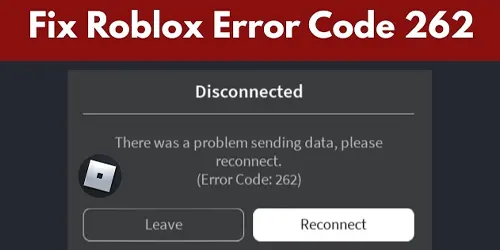
Error Code 262 shows up as "There was a problem sending data, please reconnect" and kicks you out of a Roblox experience mid-load. It's not a ban and it's not broken hardware — here's what's actually causing it and the fixes that work.
What Causes Roblox Error 262?
At its core, this is usually a client version desync. Every time you launch Roblox, your client performs a handshake with Roblox's servers to confirm you're both running the same version. If Roblox has pushed an update and your local client's background auto-updater failed to catch it silently, that handshake fails and you get bounced with this exact error. Less commonly, it can also come from Wi-Fi instability, corrupted cache files, or a firewall/antivirus program blocking the connection.
Check Roblox's Status First
If a huge number of players are hitting this at the exact same time, it can also point to a broader, server-side issue on Roblox's end rather than anything wrong with your specific setup. Before spending time on local fixes, it's worth checking Roblox's official status channels — if it's a platform-wide hiccup, the fix is simply waiting it out rather than reinstalling anything.
Fix 1: Launch Through the Website, Not a Shortcut
If this error keeps coming back every few days, your launch method is very likely the cause. Desktop shortcuts and pinned taskbar icons skip Roblox's auto-updater entirely. Always launch by clicking Play on a game directly from the Roblox website — that forces the client to check for and install the latest version before every session.
Fix 2: Switch to a Wired Connection
Wi-Fi instability is one of the most common triggers here. If you're able to, plug an Ethernet cable directly from your router into your PC and disable Wi-Fi for that session — this resolves the error instantly for a lot of players.
Fix 3: Clear Your Roblox Cache
Corrupted cache files can break the connection between your client and Roblox's servers. Clearing the cache forces a clean rebuild the next time you launch — if you play through a browser, clear your browser's cache too before relaunching.
Fix 4: Check Your Firewall and Antivirus
Some antivirus software and browser extensions block Roblox's data connection without any clear warning. Temporarily disabling them (or adding an exception for Roblox) to test is a quick way to rule this out.
Fix 5: Reinstall Roblox
If nothing above works, a clean reinstall replaces any deeper corrupted files causing the desync. Uninstall Roblox Player completely, delete any leftover files in your AppData\Local\Roblox folder, then reinstall fresh from the official site.
For more on Roblox, visit the platform directly.
For more Roblox guides and codes, visit our Roblox codes and guides hub.
Frequently Asked Questions
Does Error 262 mean I've been banned?
No. This is a technical connection error, not an account penalty of any kind.
Why does this error keep coming back?
Repeated occurrences usually mean you're launching from a desktop shortcut or pinned icon that bypasses Roblox's auto-updater. Launching through the website directly resolves this.
Could this be a Roblox server issue instead of my device?
Yes, in rare cases. If a large number of players are affected at once, it can point to a broader server-side issue rather than a problem with any individual setup, in which case checking Roblox's status page is the right first step.
Conclusion
Start by checking whether it's a wider server issue, then work through launching via the website, switching to a wired connection, clearing your cache, and checking your firewall. A full reinstall as a last resort clears up nearly everything that's left.