Nintendo Switch Orange Screen – Causes and Fixes – RiftZone
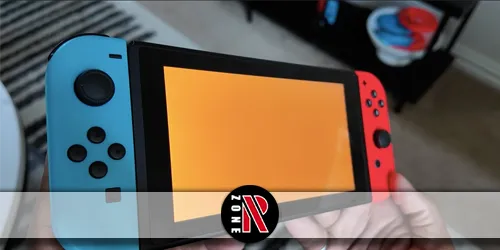
Seeing an orange screen on your Nintendo Switch? Here’s what causes it and how to fix the issue step by step.
Table of Contents
Your Nintendo Switch suddenly shows a solid orange screen and stops responding—it’s frustrating and can cost you progress. This crash often appears after sleep or docking, and it points to software hiccups, power or dock issues, overheating, or even hidden hardware damage. Before you panic, you can try a few quick checks and fixes that restore control fast. You’ll learn what triggers it, how to prevent repeats, and when it’s time to call Nintendo—starting with the simplest step.
What Is the Nintendo Switch Orange Screen
When your Nintendo Switch suddenly shows a solid tangerine screen, it’s a crash state—often called the orange screen of death—that freezes the system, blocks the UI and gameplay, and can wipe any unsaved progress. You’re looking at a system panic where the console can’t proceed, often forcing a restart.
In practice, it’s a full-screen lockup that ignores inputs until you perform a hard reset by holding the Power button for about 10–20 seconds. You might notice it after waking from sleep, especially when docked, or following a recent bump, heat buildup, or background activity misbehaving. While a single incident can be transient, repeat orange screens suggest deeper trouble, sometimes pointing to motherboard or display component faults that require professional service.
Why the Switch Screen Turns Orange
Though it looks alarming, the Switch’s orange screen is simply the system’s crash state: the console panics, can’t draw the normal UI, and locks up. You’re seeing a hard failure triggered by software or hardware faults that halt normal operation.
On the software side, wake-from-sleep glitches, failed background processes, or corrupted system files can crash the OS. That’s why it often appears after leaving the console docked in sleep or during downloads and updates—sleep/wake and network I/O can expose timing bugs.
Hardware issues can also trigger it. Overheating, a failing GPU or motherboard, damaged display circuitry, or impact trauma can force a panic, especially if the screen turns orange repeatedly or after a drop. Persistent recurrences point to deeper faults that simple restarts won’t resolve.
Quick Checks Before You Fix Anything
Start with a clean slate: force the Switch completely off by holding the Power button for 12–20 seconds, then leave it a few moments before turning it back on. After the reboot, do a few quick checks to rule out simple causes before you dive deeper.
1) Inspect the console. Look for cracks, dents, bulges, or signs of overheating—hot shell, discoloration, or blocked vents. If it’s hot, let it cool in a well‑ventilated spot.
2) Undock and test. Run the Switch in handheld mode, then redock. Note whether the orange screen appears only when docked or only on TV output—it helps isolate the issue.
3) Update the system. Go to System Settings > System > System Update and install any pending updates.
If issues persist, note your serial number and warranty status before contacting Nintendo Support.
Fix 1: Hard Reset the Nintendo Switch
If the quick checks didn’t stop the orange screen, perform a hard reset next. Hold the Power button on the top-left of the console for 10–12 seconds to force a full shutdown. Wait 5–10 seconds, then press Power once to boot normally. This hard reset won’t erase your save data or user settings, and it’s safer than pulling power from the dock or cables because the button hold triggers a clean firmware reboot.
Hard resets often clear temporary crashes and Sleep Mode wake glitches that show a colored or frozen screen. If the orange screen returns, repeat the hard reset one more time. After you boot successfully, install any pending system updates via System Settings → System → System Update. Persistent orange screens may require Nintendo Support.
Fix 2: Check Overheating and Dock Issues
Before you blame software, rule out heat and dock problems that can mimic crashes. If the Switch feels hot or the vents are warm, let it cool for 5–10 minutes. High internal temps can cause color shifts or instability. Next, undock the console and play handheld for several minutes. If the orange screen doesn’t return, the dock or its connections may be at fault.
Rule out heat and dock issues first: cool the Switch, then test handheld to isolate dock-related orange screens.
1) Inspect and clean ports: Use compressed air and a soft brush on the dock’s USB‑C and the Switch’s charging port. Look for dust, debris, or bent pins that can short or disrupt power.
2) Swap cables and inputs: Test known‑good HDMI and power cables and try another TV input.
3) Watch for timing: If issues appear after ~10 docked minutes, avoid sleep while docked and contact Nintendo Support.
Fix 3: Update the System and Restart
Even when the orange screen looks like a hardware problem, updating the Switch’s firmware and doing a clean restart often clears the crash. From the HOME Menu, open System Settings (cog) → System → System Update to check and install patches that improve stability and fix panic-screen crashes. If the console’s frozen, hold POWER for 12–20 seconds to force shutdown, turn it back on, and run System Update before playing again. Keep Wi‑Fi or a wired USB‑LAN connection stable so the update completes.
- After updating, restart once more, then test for recurrence by leaving the console docked in sleep for 10–15 minutes.
| Step | Action |
|---|---|
| 1 | Force shutdown if unresponsive |
| 2 | Reboot the Switch |
| 3 | Run System Update |
| 4 | Verify by 10–15 minute sleep test |
Fix 4: Test Wi-Fi and Network Settings
Network quirks can trip up the Switch, so narrow the cause by testing Wi‑Fi and updates. If the orange screen appears while docked or waking from sleep, first disable Wi‑Fi: System Settings > Internet > Internet Settings, then turn off Wi‑Fi. Put the console through several sleep/wake and dock/undock cycles. If the crash disappears, a network task during sleep is likely involved.
1) Turn off Auto‑Update Software: System Settings > System > Auto‑Update Software. Test sleep/wake again. Background downloads can trigger the fault.
2) Try a different network or a mobile hotspot. If the issue vanishes on another SSID, your router or traffic pattern may be provoking the crash.
3) If changing Wi‑Fi settings stops orange screens, contact Nintendo Support and report network‑triggered crashes.
Fix 5: Check for Physical Damage
Rule out a hardware culprit by giving the Switch and its accessories a careful once‑over. Inspect the housing and screen edges for hairline cracks, dents, or gaps—especially along seams and near the Joy‑Con rails—since impacts can misalign the display or internal connectors. Check the LCD for discolouration, pressure spots, or vertical/horizontal lines; these symptoms point to a damaged panel that can trigger an orange or distorted screen.
Turn the console over and look for loose or missing screws around the back and kickstand. Gently press around the bezel; flex or creaking suggests a loose display cable. Examine the dock and HDMI cable for bent pins, corrosion, or debris that could cause abnormal TV colours.
If you find damage or intermittent post‑drop issues, avoid DIY disassembly and seek professional repair.
When to Contact Nintendo Support
If the orange screen still appears after a force shutdown (hold POWER 12–20 seconds) and installing the latest system update, it’s time to contact Nintendo Support. Persistent, solid tangerine screens often point to issues you can’t resolve at home. Avoid third‑party fixes if you’re under warranty—you could void coverage.
Here’s when to reach out and what to prepare:
- The orange screen recurs, especially right after docking or waking from sleep—submit an online repair request and describe frequency and circumstances.
- You’ve completed updates and resets with no change—use Nintendo’s repair workflow to get an estimate, shipping instructions, and warranty determination.
- You suspect hardware failure—provide your serial number. If Nintendo confirms a screen, motherboard, or Wi‑Fi IC issue, track timelines, status updates, and keep all shipping and reference numbers.
Frequently Asked Questions
Will I Lose Saved Data After an Orange Screen Crash?
You usually won’t lose saved data, but crashes can corrupt files. Restart by holding power 10+ seconds, boot, and update the system. Back up cloud-compatible saves. If corruption persists or saves vanish, contact Nintendo Support with your serial number.
Does Using Third-Party Accessories Increase Orange Screen Risk?
Yes, some third-party accessories can increase risk, especially low-quality docks, cables, or batteries that cause power or firmware issues. Use licensed gear, update system firmware, test without accessories, and stop using anything that triggers crashes or overheating.
Can Orange Screen Errors Be Linked to Specific Game Titles?
Yes, sometimes specific titles trigger it due to bugs or corrupted data. You should update the game and system, clear corrupted data, or reinstall. If crashes persist across titles, suspect system issues and contact Nintendo Support with your serial.
How Do I Back up Saves Before Sending for Repair?
Use System Settings → Data Management → Save Data Cloud to back up to Nintendo Switch Online. Enable automatic backups per game. For titles without cloud support, transfer saves locally to another Switch via Transfer Your Save Data.
Is the Issue Covered by Warranty or Extended Warranty?
It’s usually covered under the standard 12‑month warranty if there’s no accidental damage or unauthorized mods. Extended warranties depend on your plan’s terms. Check your purchase date, region, and receipts, then contact Nintendo Support to confirm eligibility.
Conclusion
The orange screen is scary, but you’ve got a clear path: power it down, test handheld vs. docked, update firmware, clean ports and cables, and watch temps. Try network tweaks and rule out corrupted files or background updates. If crashes persist or you spot physical damage, back up saves and contact Nintendo Support. Acting quickly prevents data loss and bigger repairs. With a few careful checks, you’ll get your Switch stable and back to gaming fast.