League of Legends Vanguard Error VAN 57 Fix – RiftZone
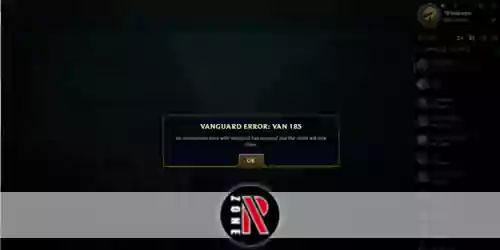
League of Legends Vanguard error VAN 57 prevents login or launch. Learn why it happens and how to fix the VGC service or Vanguard files.
Table of Contents
You hit League of Legends Vanguard Error VAN 57 when Riot Client can’t talk to Vanguard’s vgc service, so the game blocks you at login or launch. You usually trigger it after an update, a reboot that leaves vgc stopped, or a driver or Windows change that breaks initialization. You can fix it fast if you know where to look first, but one wrong assumption wastes time, so start with the checks that actually matter…
What Is League of Legends Vanguard Error VAN 57?
Why does League of Legends suddenly stop you with Vanguard error VAN 57? You’re seeing VAN 57 when Riot Vanguard can’t initialize or the Riot Client can’t talk to its anti-cheat component. In practice, it means the vgc service (Vanguard’s Windows system service) isn’t running correctly, so the client blocks login, matchmaking, or the game launch to keep competitive integrity intact. The pop-up often appears right after an update or at launch, and it may read like Vanguard failed to start. To fix VAN57, you typically restart your PC and Riot Client, verify the vgc service is set to Automatic and started, or reinstall Riot Vanguard if files look corrupted. If it persists, you may need support help too.
Why Vanguard Error VAN 57 Happens in League of Legends
You’ll usually see Vanguard Error VAN 57 when the VGC service isn’t running, so Vanguard can’t start or talk to the Riot Client. You can also trigger it if Riot Vanguard files get corrupted after a bad install or incomplete update. In other cases, registry or system configuration problems stop Vanguard from initializing properly and block League of Legends from launching.
VGC Service Not Running
To fix VAN 57, open services.msc, find vgc, and set Startup type to Automatic. Then click Start to bring it back online. If you can’t start it or it stops again, uninstall Riot Vanguard from Programs and Features, restart your PC, and relaunch the Riot Client to reinstall it cleanly.
Corrupted Riot Vanguard Files
Even if the vgc service is set to Automatic, VAN 57 can still pop up when Riot Vanguard’s files are corrupted and Windows won’t load its drivers or binaries. With league of legends vanguard error van 57, the Riot Client can’t establish required kernel-level communication, so login or launch gets blocked. Interrupted updates or disk errors often create corrupted vanguard files by altering or removing key drivers and binaries, and Windows refuses to load them. You might notice the vgc service stopped in services.msc or see Vanguard repeatedly try to reinstall and fail. The most reliable fix is to uninstall Vanguard from Programs and Features, reboot fully, then reinstall riot vanguard by launching the Riot installer. If corruption returns, run an sfc chkdsk fix to repair system and disk integrity.
Registry or System Configuration Problems
Because Vanguard relies on strict kernel-driver rules, small registry or system configuration changes can stop it from initializing and trigger League of Legends Vanguard error VAN 57. If keys under HKEY_LOCAL_MACHINESYSTEMCurrentControlSetControlCI Policy (like DevOverrideEnable) get flipped, Vanguard’s driver enforcement can fail, and you’ll see lol vanguard error van 57. Damaged permissions or missing Vanguard keys can also block driver registration at boot, producing the riot vanguard van 57 error.
System policies matter too: Secure Boot or Group Policy settings that restrict kernel-mode drivers can stop startup. If HKLMSYSTEMCurrentControlSetServicesvgc has a wrong ImagePath, dependencies, or startup type, Windows won’t launch it, so your vgc service van 57 fix becomes necessary. That’s why registry checks often lead to a van 57 league of legends fix and help you fix vanguard error van 57 league of legends.
Restart Riot Client and PC to Fix Vanguard Error VAN 57
Once you’re back in Windows, launch the Riot Client again and try logging in or queueing. This restart cycle often restores Vanguard-to-client communication and resolves transient launch blocks Riot commonly flags with VAN 57. To confirm Vanguard actually came up, press Win+R, type `services.msc`, and look for vgc; it should show Running and be set to Automatic. If the error persists, repeat the full quit-and-reboot process one more time before you move on to deeper fixes.
Enable and Start the VGC Service in Windows
Next, check the service status. If it’s stopped, right-click vgc and choose Start (or click Start in Properties). You may need admin rights. If it won’t Start, open Event Viewer and review Windows Logs > System for vgc errors, then restart your PC. Finally, relaunch the Riot Client or League to confirm VAN 57 is gone.
Use the DevOverrideEnable Registry Fix (Advanced)
- Press Win + R, type regedit, and press Enter
- Go to HKEY_LOCAL_MACHINESYSTEMCurrentControlSetControlCIPolicy
- Export the Policy key to back it up first
- Double-click DevOverrideEnable and set the DWORD Value data to 0
- Click OK, then restart your PC to apply the change
If VAN 57 remains or anything behaves oddly, set DevOverrideEnable back to its original value and contact Riot Support.
Reinstall Riot Vanguard to Fix VAN 57
Reinstall Riot Vanguard to refresh the anti-cheat driver and service when VAN 57 keeps blocking login or launch. Press Win + R, type appwiz.cpl, and uninstall Riot Vanguard. Restart your PC fully so Windows removes the driver and service cleanly. After reboot, download and run the official League of Legends (or Valorant) installer from Riot’s website, which will reinstall Vanguard automatically. Next, press Win + R, open services.msc, locate vgc, and set Startup type to Automatic, then confirm the service shows Running. If the reinstall still fails, uninstall Vanguard again, delete leftover Riot folders in C:Program Files and C:Program Files (x86), then reinstall the game. Finally, check Device Manager and Windows Update, reboot once more.
If you're looking for extra in-game rewards after fixing the error, check the latest League of Legends redeem codes to claim available rewards and promotions.
Extra Fixes if League of Legends VAN 57 Still Appears
If VAN 57 still pops up, you should first install any pending Windows updates so Vanguard can rely on the latest system components. Next, disable or clean-boot around conflicting software like antivirus, overlays, and “optimizer” tools that can block the vgc service. Finally, update key system drivers—especially chipset, network, and GPU—so Vanguard’s service and drivers can start and communicate reliably.
Check Windows Updates
- Install all cumulative updates
- Apply optional chipset drivers
- Apply optional network drivers
- Restart (don’t just sign out)
- Run troubleshooter + SFC
Disable Conflicting Software
Even with Windows fully updated, VAN 57 can stick around when another program blocks Vanguard’s vgc service or its kernel driver. First, temporarily disable real-time protection in Windows Defender or third-party antivirus like Avast, Norton, or Kaspersky, then relaunch League to test. Next, close or uninstall “optimizer” and overlay tools such as Razer Cortex, MSI Afterburner, and CCleaner, since they can disrupt vgc startup. Also pause VPNs and network filtering apps (antivirus network shields, ad-blocking DNS clients) because they can break Riot Client↔VGC communication. If you can’t pinpoint the culprit, run a clean boot (msconfig → Services → Hide Microsoft services → Disable the rest), then re-enable services one-by-one. After changes, fully restart your PC before launching League.
Update System Drivers
Refresh your system drivers to eliminate low-level conflicts that can keep Vanguard’s vgc service or kernel driver from loading. Start with your GPU: grab the latest WHQL driver from NVIDIA, AMD, or Intel to match Vanguard’s kernel requirements. Then use Device Manager (Win + X) to update Display adapters and record the driver version and release date before and after. Don’t skip Windows Update, since recent security and kernel patches can determine whether Vanguard loads. If Windows can’t find updates, pull the newest chipset and network drivers from your motherboard vendor to prevent signing or service-start issues. Afterward, restart fully and confirm vgc starts automatically in services.msc.
- Update GPU with WHQL package
- Check Device Manager driver dates
- Install all pending Windows Updates
- Update chipset and network drivers
- Restart and verify vgc status
Frequently Asked Questions
What Is an Error 57?
Error 57 is a launch/login failure code that tells you a required background service didn’t start or can’t communicate with the client. You’ll fix it by restarting, enabling the service, or reinstalling it.
Conclusion
You can fix League of Legends Vanguard Error VAN 57 by restoring Vanguard’s connection to Windows. Start simple: reboot your PC and the Riot Client, then confirm the vgc service is set to Automatic and running. If it still fails, try the DevOverrideEnable registry tweak only if you’re comfortable editing Windows settings. Reinstall Riot Vanguard to replace corrupted files. If VAN 57 persists, update drivers, run system repairs, and clean boot to find conflicts.